Introduction
Our feature tour template offers a cool way to list related pages. Your pages have a hierarchy which means you can set them up as parents and children.
You would start off by creating a page, this will be your “parent”. You would then create additional pages and set them as children to the parent and they will be displayed in the navigation list to the left.

Setting a page template
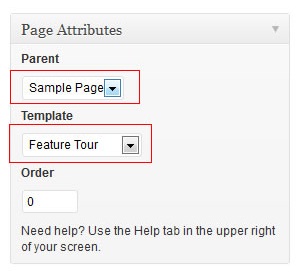
Navigate to Dashboard -> Pages -> Add New to see the page edit screen. From here look on the right hand side and you’ll see the “Page Attributes” meta box as seen in the image to the right.
You can switch which page template you would like your page to use here.

Setting up the parent and child pages
When editing your pages you can set them to have a parent as seen in the image to the right. To group your pages together in the navigation you need to set them all to have the same parent page.
In the image to the right we are setting the page to be a parent of “Sample Page”, this makes it a child page of “Sample Page”. This means that all other child pages will be grouped into the navigation on the left when using the feature tour template.