Introduction
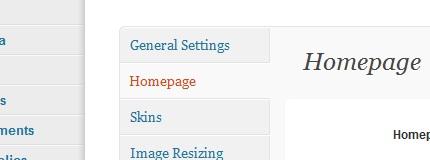
The Homepage tab holds options which are all about configuring your homepage. You can edit the homepage content directly or choose multiple pages to display.
You can customize everything about your homepage here so make sure not to set a static page as your front page in Dashboard -> Settings -> Reading, that will only cause problems.
Homepage layout
The first option is choosing which layout you want for your homepage. As you can see there are three images which are, “No Sidebar”, “Left Sidebar”, and “Right Siderbar” respectively. Click on the desired image to use that layout.

The Hompage has it’s own sidebar which you can find in Dashboard -> Appearance -> Widgets. It is the one that is called “Homepage Widget Area”. Do not forget to drag some widgets here to fill up your homepage sidebar.
Call to action
The “Call to Action” is a combination of a teaser text and a button. It will usually display right beneath your slideshow as a means to grab the visitors attention and get them to take action.
You can change the teaser text, the button text, and the button link. For the button you can link it to one of your pages, an external site, or disable it.
You can think of the call to action as the “Intro” of your homepage. The teaser text accepts HTML and shortcodes so feel free to get creative in whatever you decide to add.



Custom homepage content
After the call to action comes the homepage content. You can fill out your content in this editor and / or use content from some of your pages. It is just like the editor you use when filling out a page and it accepts shortcodes, html, etc etc.
To use content from one of your pages click on the “Additional Homepage Text” dropdown and select which page you wish to display in your homepage content.
Of course if you wanted your homepage blank then you would just leave these two options empty.


Slider & blog posts
If you do not want the slider to display on your homepage then you would check the first option.
Checking the second option will display your blog posts on your homepage. You can set the number of posts to display by navigating to Dashboard -> Settings -> Reading and setting a number in the “Blog pages show at most” field.


Outro text
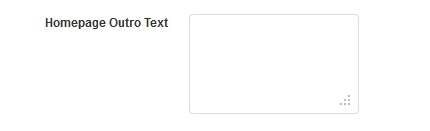
The Outro Text is some text very similar to the call to action text but it will display right above your footer. The homepage outro text will display only on the homepage and it will override the default outro text inside the footer tab.