
Finding the shortcode generator
It would be impossible to remember the syntax for every one of our shortcodes. Our shortcode generator is an easy way for you to place a shortcode inside your content without having to memorize the syntax or available options associated with it.
Login to your dashboard and create a new page or edit an existing page. Right below your editor you should see the shortcode generator.
Prepping the landing zone
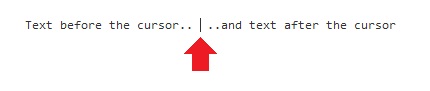
When you use the shortcode generator the shortcode syntax gets placed inside your editor. Exactly where the syntax is placed depends on where your cursor is. You can tell where your text cursor is by the blinking line.
Selecting the shortcode and options
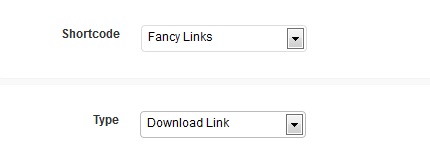
Now that we know where our shortcode is going to end up let’s go ahead and select which shortcode we would like to use.
After selecting your desired shortcode from the dropdown some more fields will appear where you can customize the shortcode options.
Using the help tooltips
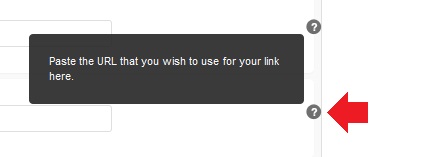
There will be times where you are not sure of what the shortcode options are for. When this happens hover your cursor over the help icon to the right of the option and a help tooltip will appear which explains what the option does.
Inserting the shortcode
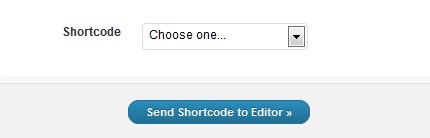
After you are done customizing your shortcode options you can click on the “Send Shortcode to Editor” button to insert your shortcode into your content.

